AI

Latest News

The latest from Local Church Growth Tools.

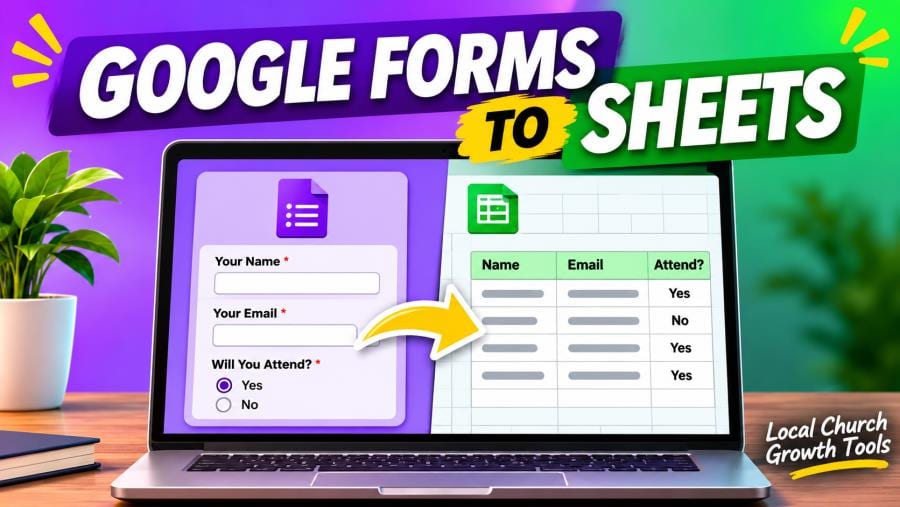
Google Forms to Sheets: Test a Church Signup Tracker

Send church signup responses to Google Sheets, then verify the link and review who can access it.

Pierre Basson

Pierre Basson

Nov 16, 2026
Google Forms to Sheets: Test a Church Signup Tracker

Send church signup responses to Google Sheets, then verify the link and review who can access it. Start with the official guidance and write down the questions you need to answer before setting a time.


Open the signup form, select Responses and use the spreadsheet destination control. Google lets you create a sheet or select an existing spreadsheet. Name the destination for the signup so a backup coordinator can find it. If you use an existing workbook, check what it already contains and who can access it before linking.


Open the responder link and submit a clearly labeled test with sample data. Check the Responses tab and the new row in Sheets. Compare fields such as name, session and availability with what you entered. If something is missing, confirm you are looking at the right form and spreadsheet before repeating the test.


Google advises that form collaborators may have access to the linked spreadsheet and that access may need to be removed from each separately. Review both sharing lists. Decide who checks new signups, how they mark a follow-up, and when the backup takes over. Test the backup’s access before announcing registration.


For additional planning, see Google Forms Response Alerts: Test a Church Signup Notification and Google Forms Pre-Filled Link: Test It Before Sharing a Church Signup. Keep the address or link and the confirmed time in one message so everyone can refer to the same details.
Gmail Templates for a Church Office: Test a Reusable Reply

Save a short answer for recurring questions and personalize it before sending.

Pierre Basson

Pierre Basson

Nov 16, 2026
Gmail Templates for a Church Office: Test a Reusable Reply

Gmail templates can help a church office answer predictable questions, such as where a volunteer should check in. Start with one reply that uses information you can verify. Pick a stable question so the first template will still be useful when the next office shift comes in.


Google’s desktop Gmail instructions show where to enable Templates in Advanced settings. Compose a short reply, then save it as a new template from the compose window’s More options menu. Give it a recognizable name the next staff member can find.


Insert the template into a fictional test message and read it from the recipient’s point of view. Check the greeting, the reply address, links and details such as time and location. Adapt the wording for each real message before sending.


Keep the first test manual. Google documents a separate filter process for automatic template replies. Start by giving the person on duty a reviewed draft they can personalize after reading the original request.


Assign someone to update the wording when facilities or schedules change. Keep private information out of examples. A short record of the template’s purpose helps the next office worker decide when to use it and when a personal reply is needed.

Check the official information and our related guide before finalizing the details.

Google Forms Response Alerts: Test a Church Signup Notification

Turn on a Google Forms response alert and test who actually sees the first signup.

Pierre Basson

Pierre Basson

Nov 15, 2026
Google Forms Response Alerts: Test a Church Signup Notification

Turn on a Google Forms response alert and test who actually sees the first signup. Start with Google’s Forms help and decide on the first step before you ask other people to join.


Open the signup form while signed into the account that should monitor it. Google directs editors to Responses, then More, then Get email notifications for new responses. Submit one clearly labeled test from the responder link. Check that the submission appears in Forms and that the intended person receives an alert.


An email alert tells you a submission arrived. Decide who will review it, how often, and what they will do if it needs a reply. Leave those instructions somewhere the church office can find them. Keep access to response data limited to people assigned to the signup.


Have a backup editor check their access and confirm their own notification setup. Use a test response without real personal details. If the expected alert never arrives, confirm you are in the right form and account and check email filters. Compare the response list with your test before assuming the form itself failed.


For related planning, see our pre-filled link guide and branching guide. Check the current details before sharing your final plan.

Gmail Filters for a Church Inbox: Test One Label First

Preview the matches and check new messages before expanding an inbox rule.

Pierre Basson

Pierre Basson

Nov 14, 2026
Gmail Filters for a Church Inbox: Test One Label First

Start with one recurring message type when setting up a Gmail filter for a church inbox. A volunteer signup notice is easier to test than a broad rule that tries to cover all office mail. Choose a label that tells the person on duty what the message is about.


Google’s Gmail filter instructions explain how to preview criteria with a search before saving a filter. Check that the search finds the intended messages and leaves unrelated ones out. Add a distinctive subject phrase if a sender creates several kinds of mail.


Apply the label and leave messages in the inbox while you test. Use a harmless example and confirm the label appears. Check a second message that should stay unlabelled so you can see whether the rule is too broad.


Write down who reviews the label and what they should do with the requests they find there. Recheck the filter when a form, notification sender or event name changes. Avoid including real member messages in training material.


For office coverage, our Gmail delegation guide covers the separate question of who can open the mailbox and respond. A label helps people find a message. Pair it with a clear handoff so a volunteer request still gets an answer.

Check the official information and our related guide before finalizing the details.

Gmail Delegation for a Church Inbox: Test One Handoff

Use individual accounts and verify the delegate’s access and reply workflow before assigning a church inbox shift.

Pierre Basson

Pierre Basson

Nov 12, 2026
Gmail Delegation for a Church Inbox: Test One Handoff

Before using Gmail delegation for a church inbox, decide who is authorized to cover the mailbox and what they should handle. Start with one delegate and one test shift. Write down which common requests they can answer, which conversations should wait and who can help with exceptions.


Google’s Gmail delegation instructions explains the access a delegate receives and how the desktop setup works. Since delegation gives access to the inbox, review what is already in it and confirm that your administrator allows it. Use Google’s guide to email collaboration options if you need to compare temporary coverage with an inbox where several people assign requests.


Have the named delegate accept the invitation with their own account. Send a harmless test message and check that they can open the right mailbox, answer from it and return to their personal inbox. Review what the recipient sees on the reply. Practice one common request, such as a question about where volunteers should meet.


For planned absences, coordinate the shift with our church vacation responder guide so the office response time is clear. Tell the delegate when to start, when to stop and where to send messages they cannot answer.


At the end, review open conversations and have the owner or administrator check whether the delegate still needs access. Save the test result and handoff notes for the next person.

Google Forms Pre-Filled Link: Test It Before Sharing a Church Signup

Set a public event detail in advance and check what each recipient sees.

Pierre Basson

Pierre Basson

Nov 11, 2026
Google Forms Pre-Filled Link: Test It Before Sharing a Church Signup

A Google Forms pre-filled link can start a church signup with a session or another public detail already selected. Choose one answer that will help the volunteer and that is safe to share in a link.


Google’s sharing instructions explain how to open Pre-fill form, enter the answer and choose Get link. The Workspace customization guide gives examples such as room numbers and event titles. Save the generated link with a label that says what it fills.


Open the link as a prospective volunteer. Check what appears and whether a person can change the selection when appropriate. Use fictional details to test the form and ask the coordinator to check the saved answer.


For a form that sends volunteers to different sections, review our section-routing guide. Our response-editing guide explains how to check a change after someone submits. Test these steps with the actual signup if the team relies on them.


Keep names and private answers out of a link that might be forwarded. If a session changes, review the links in current announcements and give readers an approved contact for questions.


Before the bulletin or newsletter goes out, have a second person open the final link. Confirm it points to the right form and shows the intended session.

Google Forms Branching: Send Church Volunteers to the Right Questions

Use one multiple-choice or dropdown question to route a signup, then test every path.

Pierre Basson

Pierre Basson

Nov 10, 2026
Google Forms Branching: Send Church Volunteers to the Right Questions

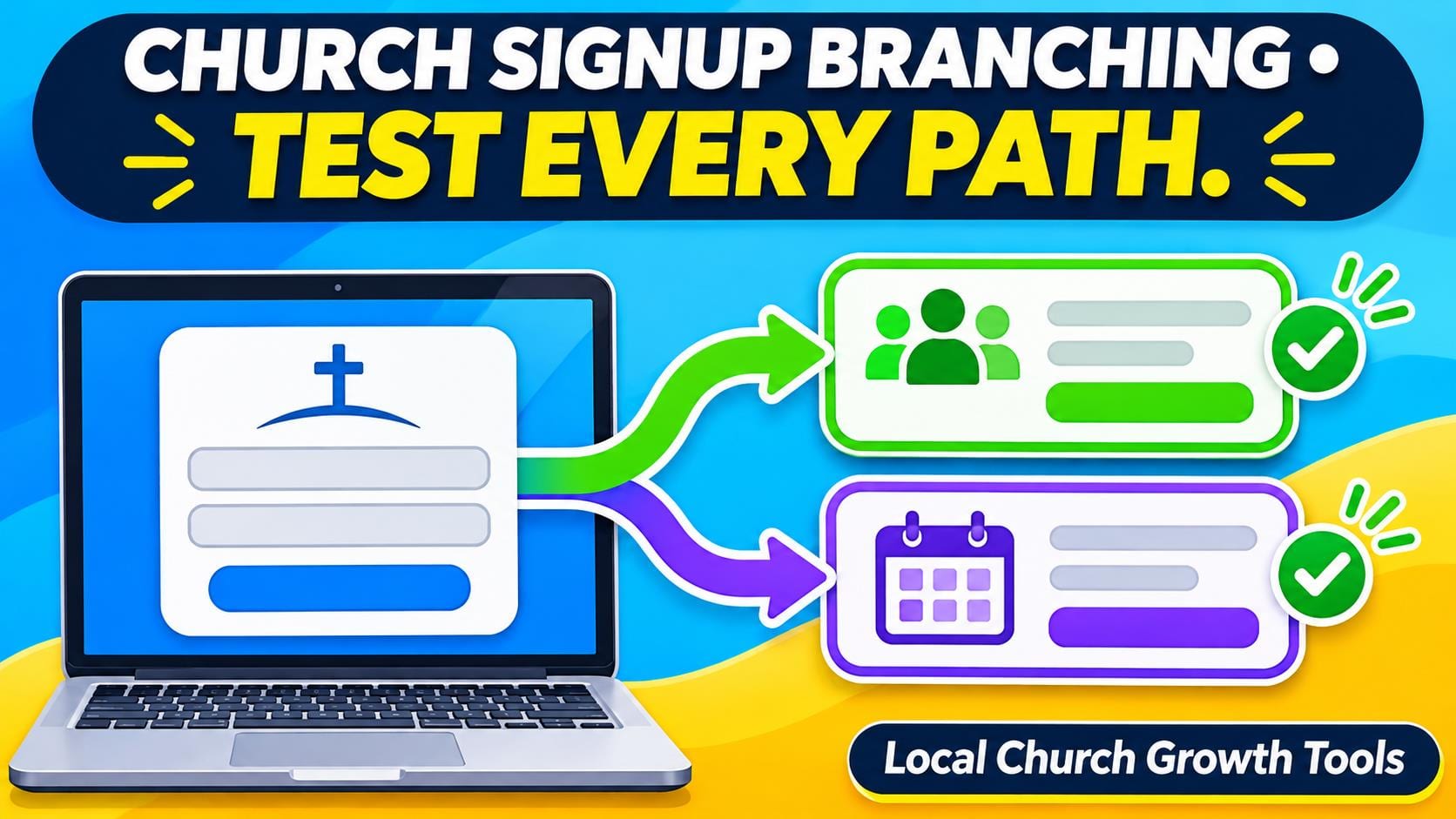
A church volunteer signup can show people different questions depending on the role they choose. Start by writing down what every volunteer needs to answer and what only one coordinator needs.


Google’s section-routing instructions describe Go to section based on answer for multiple-choice and dropdown questions. Build one destination per answer and check where each section sends the person afterward.


The Workspace customization guide offers examples of tailoring questions. For a church signup, try two fictional paths first, such as welcome table and meal setup. Keep shared questions together and decide how to handle people who want both roles.


Open the respondent link in the intended audience context. Submit one fictional answer per route and check which questions appear, what the ending says and where the coordinator sees the result.


Use our response-editing guide if volunteers need to change a submitted answer and our notification handoff guide if a team needs to watch for new signups. Test those steps separately.


Give the event lead a short record of the routes, the expected ending and the person responsible for each role. Repeat a path after changing its questions or moving a section so the live signup continues to send volunteers to the right place.

Things to Do for Church Teams This Week, November 9–15, 2026

Find local opportunities to serve, learn and plan volunteer follow-up during November 9–15.

Pierre Basson

Pierre Basson

Nov 9, 2026
Things to Do for Church Teams This Week, November 9–15, 2026

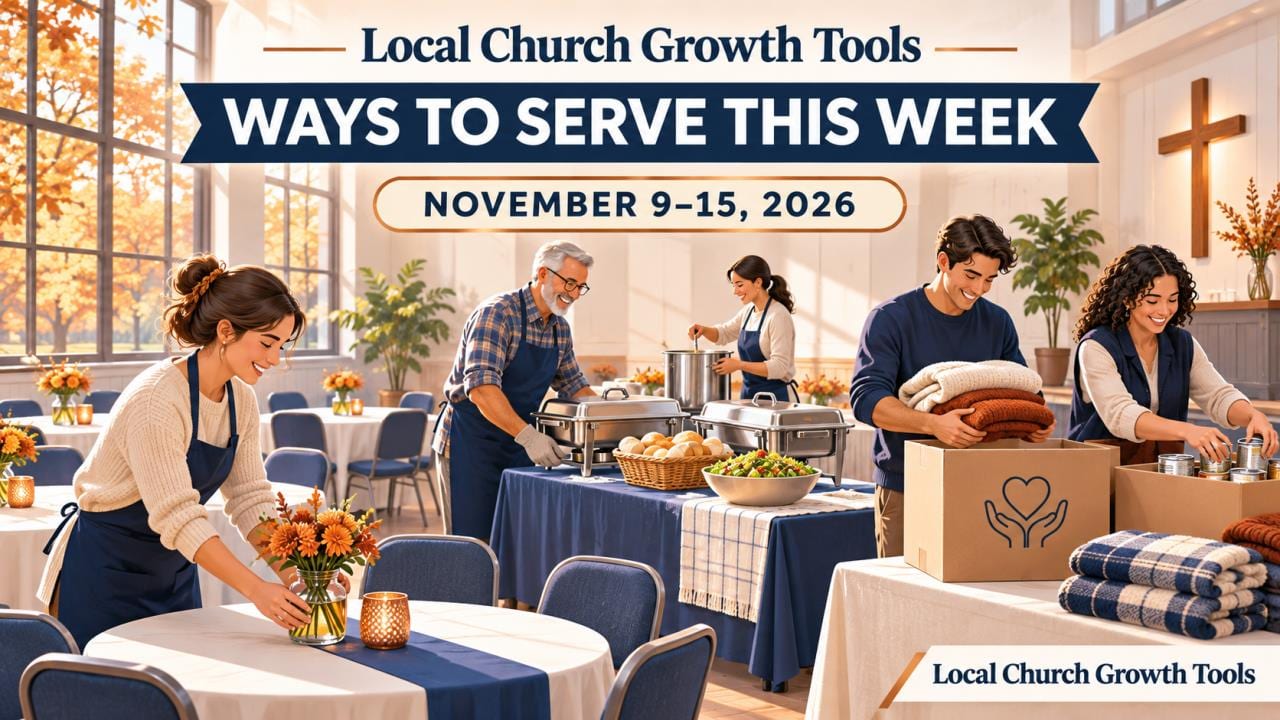
During November 9–15, church teams can choose from online learning and local ways to serve, with several outreach events scheduled for Saturday.


On Tuesday at noon, Georgia Interfaith Power & Light hosts its online Green Team Roundtable. Church and congregation teams can check the organizer’s registration page for access. The New York Annual Conference also lists an online trauma-informed ministry conference from Thursday through Saturday.


Saturday begins early at New Life in Decatur with a Thanksgiving foodbox giveaway. Check the organizer’s instructions before sending guests or signing up volunteers.


Later that morning, the tree adoption at Community Church Atlanta connects eligible homeowners with native trees and planting guidance. SafeHouse Outreach also lists a downtown chili outreach with several kinds of volunteer shifts.


Use this week to confirm your team’s commitments with each host. If a dated event is already full, the Atlanta Community Food Bank offers a year-round place to look for available group shifts.


Assign one person to confirm the role, address and arrival time before anyone drives over. After the event, save a short note on what worked so the next team can build on it.

Google Forms Response Editing: Test Changes to a Church Signup

Try a fictional registration from the visitor’s side and check how a change reaches the event team.

Pierre Basson

Pierre Basson

Nov 9, 2026
Google Forms Response Editing: Test Changes to a Church Signup

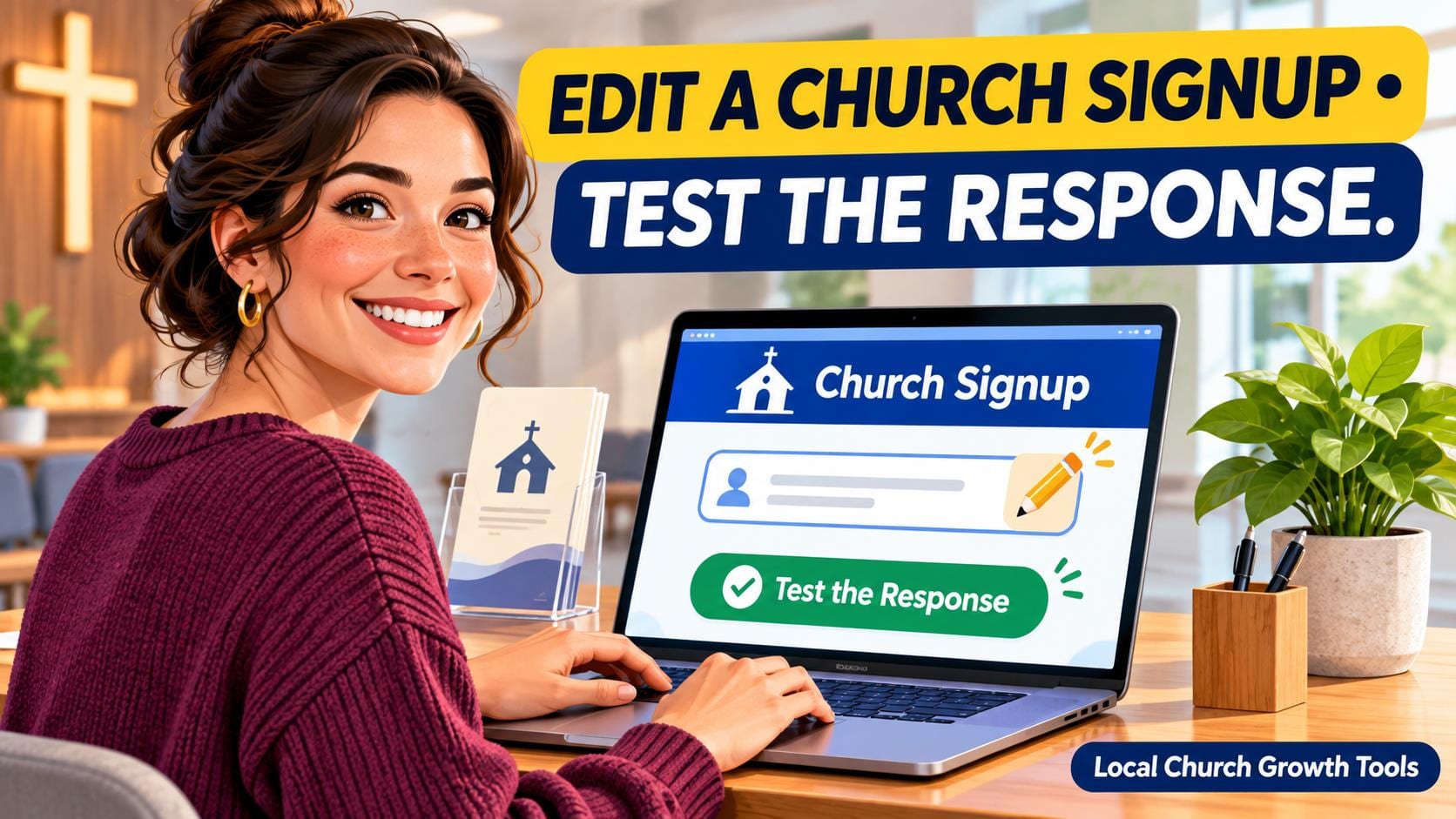
If a church volunteer needs to change a shift preference or correct a signup, Google Forms can let them edit a response already submitted. Try the process with a fictional signup before relying on it with a real event.


Use Google’s form sharing guide to find Allow response editing under Settings and Responses. Make a practice copy, then test the respondent link with the same type of account a participant will use.


Submit one response, find the edit route in the participant’s view and change a single answer. The Workspace customization guide gives shift and appointment changes as examples. Record how the person returns to the response later.


Check the revised answer where the event lead actually works. If the team uses an exported sheet or paper roster, decide who refreshes it. Test whether the change produces a notice before counting on a notification.


Our signup confirmation guide helps explain what the participant sees after submitting. Our form notification handoff guide covers who checks responses and follows up.


Tell volunteers when a coordinator must approve a change. Ask another team member to repeat the test without opening the form editor, then confirm the host can find the revised answer and update the roster.

Church Gmail Vacation Responder: Set a Holiday Inbox Handoff

Pair a scheduled Gmail reply with a named inbox owner, clear return date and a test from outside the church.

Pierre Basson

Pierre Basson

Nov 7, 2026
Church Gmail Vacation Responder: Set a Holiday Inbox Handoff

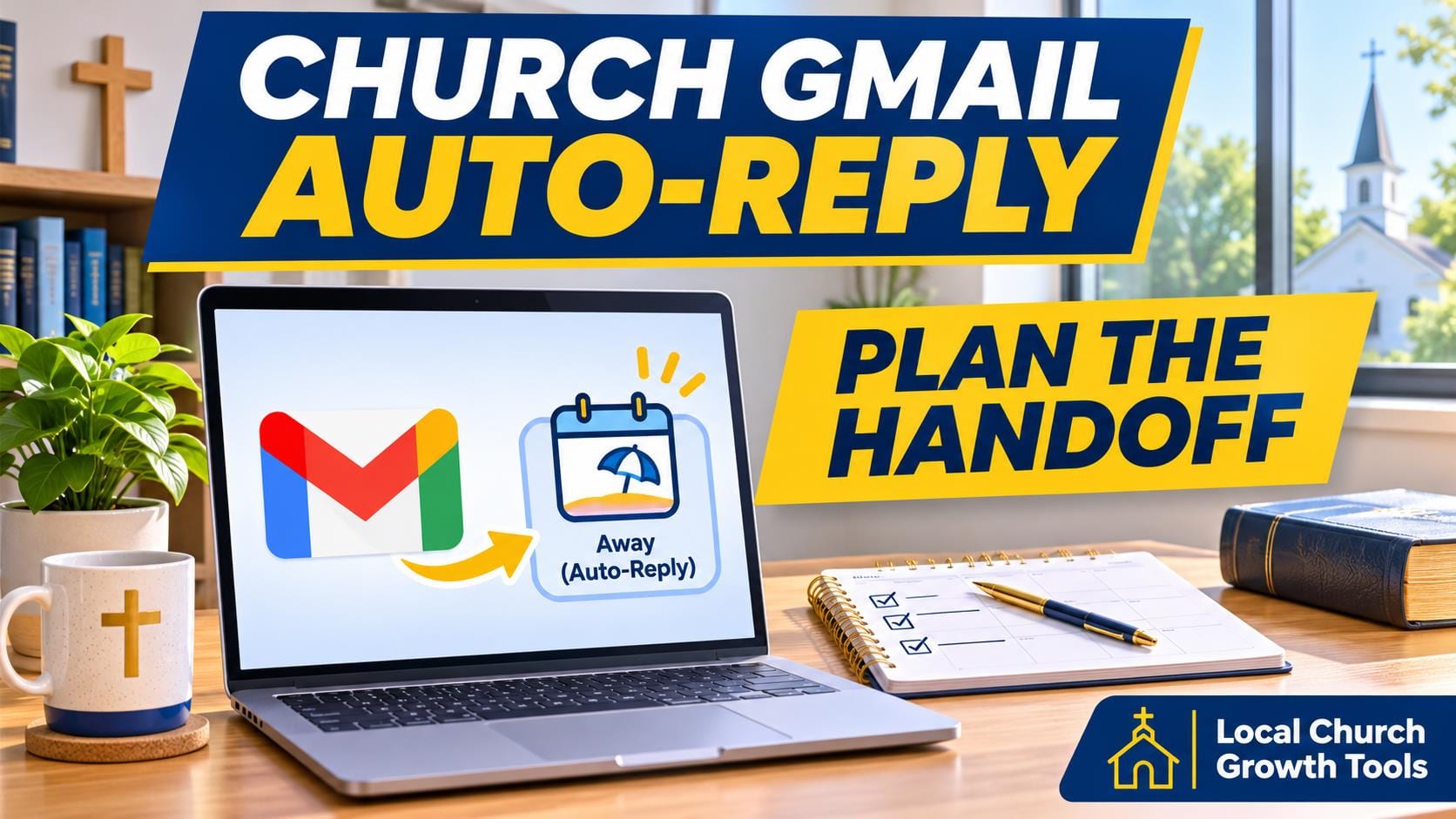
A Gmail vacation responder helps a church office tell visitors when staff will reply during a holiday closure. Start by choosing a return date and assigning someone to review incoming messages during the break.


Use Google’s vacation responder instructions in the actual public inbox. Enter the date range, subject and message, then save the setting. The reply can include a verified service schedule or a contact route that someone is assigned to monitor.


Test the reply from an outside address. Pay attention to the contacts-only setting, the appearance of the signature and whether visitors can open every linked page. Most senders receive the reply once, with exceptions Google describes.


The automatic message and the human response are separate jobs. Use Google’s handoff guidance and our church shared inbox guide when deciding who should have access, what that person can answer and when to ask another leader to step in.


For replies that need an individual answer, our Gmail reply template guide explains a separate way to prepare common wording. Review each response before sending it.


When the office returns to regular hours, confirm the responder has ended. Give the regular inbox owner a short list of unresolved messages and the person responsible for each next step.

Church Livestream Delay: Test YouTube Latency

A rehearsal helps church media teams choose a delay setting that fits the service.

Pierre Basson

Pierre Basson

Nov 4, 2026
Church Livestream Delay: Test YouTube Latency

A church livestream can sound immediate in the room while viewers at home are still waiting to hear the same words. Before changing a setting, decide whether people are mostly watching the service or whether a host needs to talk with them through live chat.


YouTube’s latency guide explains why normal latency suits a service with little interaction. A shorter delay may help when a moderator expects replies, but it leaves less room for buffering. The shorter modes do not support 4K, and webcam and mobile streams do not offer the same selector.


Run a rehearsal with one person at the encoder and another on a viewer device. Send a timed spoken cue and check when it arrives. Repeat during speech and music, logging stalls or audio problems alongside the delay. Use YouTube’s encoder recommendations to keep the rest of the setup consistent.


Pick a suitable test audience with the unlisted versus private review guide. Rehearse any audience question with the moderator, and give viewers time to hear it and respond before the host moves on.


Choose the setting that stays dependable and meets the service’s actual needs. Record the date, device, selected mode and reason, then recheck the Live Control Room settings after changing your network or encoder. The next volunteer can then start with a tested choice instead of guessing.

Church Gmail Reply Templates: Check the Details Before Sending

Create a Gmail template for church visitor replies, then check names, dates, links and attachments before sending each personalized message.

Pierre Basson

Pierre Basson

Nov 4, 2026
Church Gmail Reply Templates: Check the Details Before Sending

A Gmail template can save a church office from retyping stable visitor information, but each reply still needs a person’s review. Our new guide focuses on the inserted draft and its details before sending.

Google’s template instructions say the feature is enabled and used from Gmail on a computer. Turn it on in Advanced settings, draft the reusable wording and save it with a clear purpose-based name.

Choose information that changes infrequently, such as where to find the current schedule. Check person-specific details separately. Insert the template into a practice draft and look for repeated signatures, stale wording and unfinished placeholders.

Open the links and confirm the actual destinations. If an attachment is needed, add and inspect it separately; Google’s attachment guidance explains that files above applicable limits may become Drive links. Check access before expecting a recipient to use them.

Read the visitor’s question again and confirm the recipient before sending. This is a manually reviewed reply workflow. Automatic filter-based responses require their own decision and test.

Our shared inbox guide and visitor-route link guide cover related checks. Product instructions were checked October 7, 2026. When church details change, update the saved wording, test another inserted draft and tell office volunteers which template is current.

Church Welcome Email: Test the Subscription-to-Welcome Route

A church welcome email should match the signup promise. Test Mailchimp's confirmation step, optional final welcome message and practical visitor links.

Pierre Basson

Pierre Basson

Nov 2, 2026
Church Welcome Email: Test the Subscription-to-Welcome Route

A church welcome email works best when the signup promise and inbox experience agree. Before adding a sequence, test one complete route with an address controlled by your team and identify which messages already send.


Mailchimp's double opt-in guide describes a form submission followed by an email confirmation link before subscription. If that method is enabled, make the next inbox step clear. Its email setting applies to Mailchimp forms; integrations may behave differently.


The final welcome email guide describes another optional message after subscription. It is off by default. Review that message before creating a second welcome automation, and confirm you are working in the correct audience.


Assign one reviewer to record the trigger, purpose and owner of each message. Keep the welcome brief: acknowledge the signup, explain what emails to expect and offer one practical next step such as current service information or a staffed contact address.


Test the public form, confirmation when applicable and actual received welcome on a phone. Open the links and check the reply destination. Use our visitor-route link check to catch an outdated page at the end of an otherwise working email.


Review preferences with our unsubscribe checklist. Keep personal visitor replies separate from recurring subscriptions, document repairs and repeat the controlled test after changes. A clear working route gives volunteers a reliable place to start.

Church YouTube Description: Review the First Lines and Links

Improve a church YouTube description with a sermon-specific opening, a clear next step and a viewer-side check of the actual links.

Pierre Basson

Pierre Basson

Nov 2, 2026
Church YouTube Description: Review the First Lines and Links

A church YouTube description should explain the individual sermon before repeating general church information. Review the first lines a viewer sees without expanding the text, then make the next step clear enough for someone new to the congregation.


YouTube's description guidance recommends a unique description for each video. Check the recording, identify the topic accurately and use the speaker and Scripture details that belong to that message. Keep reusable ministry information below the opening.


Choose one useful action, such as continuing a sermon series or planning a Sunday visit. Make its destination match the promise. A visitor link should lead to practical visiting details instead of another page that leaves people searching.


Use YouTube's clickable-link guidance to check the format. External links in long-form descriptions require advanced-feature access, while URLs in Shorts descriptions are non-clickable. Test the actual saved viewer experience rather than trusting the appearance of pasted text.


Check the collapsed description on desktop and a phone-sized view. If chapters are included, follow our timestamp review workflow. Ask another volunteer to explain the message and next action without coaching from the editor.


Then use our visitor-route link check at the website destination. Record who reviewed the description and when. Better descriptions support clarity and navigation, but they do not establish a ranking or growth guarantee.

Church Welcome Video: Review the YouTube Channel Trailer

Use a church welcome video as a YouTube channel trailer with a clear visitor message, separate subscriber spotlight and a documented review.

Pierre Basson

Pierre Basson

Nov 1, 2026
Church Welcome Video: Review the YouTube Channel Trailer

A church welcome video can introduce a YouTube channel to people who have not subscribed. Start with the viewer's question: what content will I find here, and what should I watch next? Keep the message understandable outside the congregation.


YouTube's channel-layout instructions distinguish the non-subscriber Channel trailer from Spotlight for returning subscribers. Prepare those two choices separately rather than assuming one selection fills both roles.


The desktop route is Studio, Customization, Home tab, then Add section under Layout. Choose Channel trailer and the intended video. The channel owner should approve the public change before the final Publish step.


YouTube says a viewer will not be shown the trailer again after watching it. Include an appropriate fresh non-subscriber view in testing, and record the audience view checked. Watch the complete video and verify the invitation and description.


Review captions using our church caption checklist. If production music is included, follow the Audio Library attribution instructions and retain the track details with the project files.


Use our volunteer permissions guide when assigning channel work. Keep the approved video link, review date and next-update owner in a short handoff note. A clear, maintainable welcome supports understanding without promising subscription or attendance results.

Church Email Subject Lines: Check the Preview Text Too

Review church email subject lines with the inbox preview text. Use a clear pair, verify the draft and test what readers actually see.

Pierre Basson

Pierre Basson

Oct 31, 2026
Church Email Subject Lines: Check the Preview Text Too

Church email subject lines deserve a companion check: the preview text readers see beside them in the inbox. A clear subject can still be undermined by repeated wording, stray navigation text or an inaccurate promise.


Start with the reader's real question and let the preview add one useful detail. Put essential information early, because visible space varies by email app and screen. Confirm actual dates and registration conditions before including them.


Mailchimp's editing instructions place subject and preview text in the Subject section of a regular draft email. Other message types have different workflows, and sent regular-email details cannot simply be edited afterward.


Campaign Monitor's preview-text guidance explains that clients may pull body text when a custom preview is absent. Review the real draft rather than assuming the template's first visible sentence will produce the intended inbox result.


Use an approved internal test recipient and inspect the inbox before opening the message. Record the app, device and wording seen. Browser previews and tests involving personalization have limits, so document what was actually checked.


Then use our mobile newsletter checklist and unsubscribe-footer guide for separate reader routes. If the draft changes, repeat the relevant review and keep a simple approval note identifying the version and any unresolved issue.

Church YouTube Premiere: Plan the Watch Page Before Announcing

A church YouTube Premiere creates a public watch page before its recorded video starts. Review the sermon, countdown and volunteer hosting plan first.

Pierre Basson

Pierre Basson

Oct 31, 2026
Church YouTube Premiere: Plan the Watch Page Before Announcing

A church YouTube Premiere needs a release plan, not just a scheduled time. Decide whether a shared viewing of an approved recording fits the ministry and who will welcome viewers during it.


YouTube’s Premiere instructions explain that the watch page is public before playback. Complete the separate approval stage first; our unlisted-versus-private sermon guide helps distinguish review access from a public-facing release.


Check the recording, title, thumbnail, description and announcement together. State plainly that the message is recorded. Have another volunteer compare the approved invitation with the selected date and time before the team schedules anything.


Account for the countdown when describing the experience. Ask someone who did not prepare the upload to inspect the viewer-facing page. Keep one approved wording and the correct link available so separate announcements do not drift apart.


Use YouTube’s moderation guidance to choose participation settings deliberately. Our live-chat rehearsal guide supports the volunteer handoff. Assign a real host and an appropriate contact route without promising continuous monitoring that the church has not arranged.


Afterward, review the regular-upload page for later viewers and update time-sensitive wording. Assess whether people could find the message and understand the next step. A Premiere is a format choice, not a guarantee of attendance, engagement or church growth.

Church YouTube Shorts Links: Test the Related Video Route

YouTube Shorts links for churches: choose an approved related sermon, check feature access and test the viewer’s route after saving.

Pierre Basson

Pierre Basson

Oct 30, 2026
Church YouTube Shorts Links: Test the Related Video Route

YouTube Shorts links need a viewer test before a church promises “watch the full message.” A URL copied into a Short’s description or comments is not clickable, according to YouTube’s current link-sharing guidance.


The Related Video feature provides a different route: a clickable link below the channel handle. Choose an approved recording from the same channel that genuinely completes the clip’s thought, rather than automatically selecting the latest upload.


The destination must be public or unlisted and follow the platform’s guidelines. Adding it requires advanced feature access. Check the eligibility guidance and refer account questions to the responsible channel owner before promising the feature.


For an uploaded Short, use YouTube Studio’s Content area, open the selected Short, choose Related Video and save. Read the title carefully when several messages share similar series artwork. Reopen the saved item before declaring the route ready.


Activate the viewer-facing link on a representative device and inspect the destination’s opening. Have a second reviewer repeat the journey. A correct destination still needs the church’s ordinary approval of the excerpt, context and images.


Our sermon playlist guide and YouTube permissions guide cover related handoffs. Record the Short, destination, approver and test result, then repeat the check after a meaningful change to the linked recording.

Church Volunteer Sheets: Use Filter Views to Find a Shift

Use Google Sheets filter views for church volunteer schedules, check the selected range and distinguish a useful view from data-access protection.

Pierre Basson

Pierre Basson

Oct 30, 2026
Church Volunteer Sheets: Use Filter Views to Find a Shift

A Google Sheets filter view can help a church coordinator find relevant shifts without changing the view another volunteer is using. Our new workflow starts with a clear table and a specific scheduling question.

Google’s sort and filter instructions distinguish an ordinary shared filter from a filter view that applies to your own view. On a computer, create the view from the Data menu, check the table range, choose the criteria and give the saved view a useful name.

Test it with known examples: one shift that should appear and one that should not. Check recently added rows and inconsistent status wording. An empty result can reflect a wrong range or condition rather than proof that all roles are assigned.

View-only users can create temporary filter views, but those selections are not saved. Explain this when providing instructions to volunteers.

Filtering does not restrict access to underlying records. Google’s protection and hidden-sheet guidance explains related limits; keep sensitive notes out of a broadly shared schedule and review the file audience separately.

Our Calendar separation guide and Drive handoff guide cover related planning. Product instructions were checked October 7, 2026. Ask another authorized coordinator to confirm the view and its known examples before using it to report an open role or begin follow-up.

Church YouTube Video Corrections: Verify the Note and Timestamp

YouTube video corrections for churches: approve a factual note, match its timestamp and check the saved description and viewer experience after editing.

Pierre Basson

Pierre Basson

Oct 29, 2026
Church YouTube Video Corrections: Verify the Note and Timestamp

YouTube video corrections can help a church media team flag a specific factual error in a sermon description. Confirm the actual upload and passage, then obtain approved replacement wording before editing.


YouTube’s video-settings guide describes an English Correction: or Corrections: label followed by a timestamp and explanation on a separate line. Place the section after any chapters, as the current guidance directs.


Match the timestamp to the video being corrected. A separately edited podcast or social clip may have a different running time. Keep the note concise and distinguish a routine factual correction from a wider pastoral response.


The official explainer describes the viewer information overlay, but the help page lists eligibility limits. Do not promise that it will appear on every upload. Save, reopen the description and inspect the actual viewer experience.


Preserve existing approved links and chapter information. A note does not rewrite spoken audio, replace an inaccurate slide or fix captions automatically. Decide which other surfaces require their own correction.


Our podcast correction guide and YouTube chapter guide cover separate workflows. Record the approved wording and the read-back check so the team knows what changed and what viewers can actually find. Keep that record available for the next volunteer handoff.

Church Google Forms Email Notifications: Test the Handoff

Church Google Forms email notifications need a named reviewer. Test a fictional response, inbox delivery and access before promoting the form.

Pierre Basson

Pierre Basson

Oct 28, 2026
Church Google Forms Email Notifications: Test the Handoff

A church form needs a clear route from submission to a person who reads and answers it. Before promoting a registration or contact link, name the reviewer and test the handoff with fictional information.


Google's response-management instructions describe the built-in email-notification option in the form's Responses menu. Check the setting using the account responsible for the task instead of assuming an earlier setup still applies.


Test more than email arrival. Have the reviewer open the submission with their own authorized account and confirm it appears in the form. Ask the backup reviewer to rehearse the same route, then record what worked.


A reviewer alert is separate from the message a visitor sees after submitting. Our confirmation-message guide helps make that promise clear and consistent with the response time the team can support.


Google's collaboration guidance also makes the linked response spreadsheet part of the access review. Check both the form and sheet when responsibilities change, and keep responder access distinct from editing or reading other submissions.


Use our Drive handoff guide to give the next volunteer a clear starting place. Finish by recording who notices, reads and replies. Recheck after account or permission changes. Notifications are useful when they support a dependable human response process rather than creating alerts with no owner.

Church Google Slides Accessibility: Review the Reading Order

Google Slides accessibility for churches: check reading order, meaningful image descriptions and the actual shared view before a volunteer handoff.

Pierre Basson

Pierre Basson

Oct 28, 2026
Church Google Slides Accessibility: Review the Reading Order

Google Slides accessibility needs its own review before a church shares orientation or visitor-information slides. A tidy visual layout does not establish a useful reading sequence, accurate image descriptions or a clear recipient experience.


Google’s accessible-content guidance covers descriptions, meaningful link text and readable formatting. Start with the information a recipient needs, such as the invitation, arrival instruction and contact, rather than treating the theme as an accessibility check.


The screen-reader guide explains tab order and element stacking. Review the documented canvas navigation, make small changes with Arrange → Order and test the sequence again. Check the visual layout after moving overlapping objects.


Our photo-handoff guide distinguishes descriptions, captions and credits. An entrance image needs context that helps identify the relevant door; an automatic description or a photographer credit does not necessarily provide that information.


Our Slides notes-and-handoff guide covers presenter preparation. Review recipient-facing content separately, including links and any alternate HTML view offered. Speaker notes do not replace clear instructions in the material people actually receive.


Ask a reviewer to complete one real task, note where the message becomes unclear and check the saved revision. Record the test and remaining issues honestly. Reading order is one part of accessibility work, not a guarantee that the deck meets every person’s needs.

Church Google Meet Captions: Test the Participant’s View Before Orientation

Prepare a church Google Meet orientation by testing participant live captions, language settings and readability, while separating captions from transcripts.

Pierre Basson

Pierre Basson

Oct 27, 2026
Church Google Meet Captions: Test the Participant’s View Before Orientation

Google Meet live captions can help people follow a church orientation, but the useful check is what a participant sees. Our new workflow starts with a short practice meeting on the expected device and account.

Google’s caption instructions say captions are enabled for the individual user. On a computer, join the meeting and use the caption control. Test language and readability, and show participants where to find the setting rather than assuming the host’s captions appear for everyone.

Read a sample with the church name, location and next step. Check whether those details are understandable, and provide important dates, names and contact information in writing too. A feature appearing on screen does not establish that every participant’s communication needs are met.

Google’s translated captions guidance lists account and language requirements. Confirm those before promising translation. The transcript page describes a separate feature; live captions should not be presented as an automatically saved meeting record.

Speak clearly, avoid overlapping conversation and leave room for questions. Record what device and language were tested, then correct any unclear joining instructions.

Our Zoom orientation guide and YouTube caption guide cover different workflows. Product instructions were checked October 7, 2026. Finish with a tested participant instruction and a short written reference people can use after the orientation.

Church YouTube Sermon Review: Unlisted or Private?

Church YouTube sermon review: compare unlisted and private access, test the reviewer’s experience and record approval before release.

Pierre Basson

Pierre Basson

Oct 25, 2026
Church YouTube Sermon Review: Unlisted or Private?

A church YouTube sermon review should start with an agreed audience and feedback route. Unlisted and Private serve different purposes, so choose deliberately before a volunteer shares a recording for approval.


YouTube’s privacy guidance says anyone with an unlisted link can watch and reshare it. Private videos use chosen viewers, and comments are unavailable on them. An unlisted video can also appear in search through a public playlist.


Keep viewing access separate from channel-management responsibilities. Our YouTube permissions guide helps match production roles to authorized work; a person who only needs to review playback may not need a channel role.


The upload instructions explain the Visibility step. Check the saved setting after uploading, and use the current private-sharing controls when that route fits. Rehearse with a harmless sample before involving material that has not been approved for its audience.


Have an intended reviewer test the actual viewing route. Agree where timecoded feedback should go, identify the recording version and document corrections and approval. The uploader’s successful playback is not a substitute for the reviewer’s test.


Our Drive handoff guide covers an organized place for current files and notes. Before an authorized public release, reopen the intended recording and verify the completed changes and saved visibility. Keep the release decision with the assigned church approver.

Church Google Calendar Time Zones: Test the Orientation Invite

Check church Google Calendar time zones with an event-level review, a volunteer invitation test and a clear correction handoff.

Pierre Basson

Pierre Basson

Oct 24, 2026
Church Google Calendar Time Zones: Test the Orientation Invite

A church orientation invitation should identify one shared meeting time even when volunteers see different local clock times. Test Google Calendar’s event time zone before copying a schedule into reminders or registration messages.


Google’s time-zone guidance explains local display for invited guests. Confirm the intended date and event zone first, especially when an organizer is traveling or using an account configured for another location.


Use the event editor’s Time zone control on a computer to inspect the session. The settings overview distinguishes main and additional displayed zones; a confusing event does not automatically require changing a shared calendar’s broader setup.


Ask a consenting test participant to read the actual invitation on a representative account and device. Compare the displayed date, start, end and local zone with the intended meeting. Protect unrelated personal calendar details if using a screenshot.


Google’s invitation guidance recommends update emails when details change, while guests’ settings affect notification and automatic addition. Check the RSVP, calendar entry and video link separately. For a recurring session, inspect actual dates rather than assuming a fixed conversion forever.


Our calendar separation guide and Zoom rehearsal guide cover related access and presentation tasks. Keep a short handoff note naming the intended zone, tested dates, result and person responsible for corrections, then repeat the check after a meaningful scheduling change.

Church Google Forms Registration: Check the Closing Message and Deadline

Review a church event Google Form’s closing settings, deadline and custom message, then test the responder link and update the pages that send people there.

Pierre Basson

Pierre Basson

Oct 23, 2026
Church Google Forms Registration: Check the Closing Message and Deadline

When church event registration ends, the form should still explain what a late visitor can do. Our new workflow focuses on the closing message, the deadline and the links that continue sending people to the form.

Begin with the organizer’s approved decision. Record the event name, deadline and contact for late questions. Closing registration does not automatically mean the event is canceled, so the form and public event page need consistent wording.

Google’s response management instructions cover current closure controls. Review the settings available in the actual form, save the decision and reopen the controls to confirm it persisted.

Consider what each submission represents before using a response count. A household answer is not necessarily one attendee, and simultaneous submissions can affect the cutoff. A strict event capacity needs an appropriate registration process.

Test the responder address in the intended audience context and read the notice a late visitor receives. Google’s responder troubleshooting guide explains the closed-submission message. If closure is scheduled for later, record a follow-up check rather than claiming the future result has passed.

Our confirmation guide addresses successful submissions, while the event update guide covers changed event plans. Check the controlled pages and messages that link to the form. Sources were verified October 7, 2026; the church’s own saved settings and responder experience still require review.

Church Volunteer Booking Page: Test the Orientation Appointment

Test a church volunteer booking page with Google Calendar availability, account features, confirmation details and a clear ownership plan.

Pierre Basson

Pierre Basson

Oct 23, 2026
Church Volunteer Booking Page: Test the Orientation Appointment

Test a church volunteer-orientation booking page before adding its link to a welcome message. Start with one adult meeting, a named host and a few realistic available times.


Check Google’s feature comparison for the church’s account. Personal accounts and Business Starter can create one booking page; reminders and other capabilities depend on the subscription. Do not build a workflow around an unavailable control.


Follow the computer-based setup instructions to review duration, time zone, booking windows and meeting method. Appointment schedules cannot be created in the mobile Calendar apps. A default four-hour notice requirement may explain missing same-day availability.


Read the availability guidance and check the calendars used to avoid conflicts. Another host’s availability should not be assumed to be included automatically. Keep the form focused on arranging an ordinary orientation, without collecting confidential pastoral or screening information.


Have an adult colleague make an agreed test booking. Compare both confirmations, test the visitor’s cancellation or rescheduling route and remove the rehearsal appointment. Confirm the ministry identity shown on the page.


Our calendar separation guide and contact-form review guide support that rehearsal. Assign an owner for holiday exceptions, unavailable periods and booking questions, then correct confusing details before using the link in a recurring volunteer welcome workflow.

Church Sermon Thumbnail: Check YouTube’s Current Upload Specs

Prepare a church sermon thumbnail with current YouTube dimensions, desktop and mobile limits, channel eligibility and a saved-image review.

Pierre Basson

Pierre Basson

Oct 22, 2026
Church Sermon Thumbnail: Check YouTube’s Current Upload Specs

Review the church sermon thumbnail workflow before exporting another familiar template. The image should accurately identify the message and remain readable when viewers see it at a small size.


YouTube’s current thumbnail help recommends 3840 by 2160 pixels for video thumbnails, a minimum width of 640 pixels and a 16:9 shape. JPG and PNG are listed formats. The video-thumbnail limit is 2 MB for mobile uploads and 50 MB from desktop.


Custom thumbnails require a verified account. The feature-access guide places them among intermediate features and explains checking Studio’s Settings, Channel and Feature eligibility. Confirm the church channel’s access rather than relying on a volunteer’s personal account.


Our volunteer-permissions guide covers the separate role question. Choose one approved design, check its wording against the sermon and keep permission and source records with the editable file.


For a standard video on a computer, open the intended video from Studio’s Content area, upload the image beneath Thumbnail and save. Reopen the details, then review the viewer-facing result. YouTube warns that changes may take time to appear.


Our photo-handoff guide helps preserve image records. Finish by documenting the video, design source and tested upload device so the next volunteer can repeat a clear, accurate process.

Church YouTube Live Chat: Rehearse Moderation Before Sunday

Prepare church YouTube live chat with a volunteer rehearsal, checked links and clear moderation roles before Sunday’s livestream.

Pierre Basson

Pierre Basson

Oct 22, 2026
Church YouTube Live Chat: Rehearse Moderation Before Sunday

Rehearse church YouTube live chat before Sunday. A clear volunteer assignment can keep the conversation from becoming an extra task someone discovers while already operating a camera or sound desk.


Name the chat volunteer, backup and leader for uncertain decisions. Agree on the duty window and handoff. Keep upload or sermon-editing duties separate, using our YouTube permissions guide when channel access is part of the role.


Review YouTube’s live-chat moderation documentation for the current None, Basic and Strict settings. Held messages require a human decision; leaving them unreviewed keeps them hidden. The authorized leader should confirm the intended setup before service.


Use YouTube’s moderator-role instructions to check the actual role and device. A church rota title does not supply platform permissions, and managing moderators have more options than standard moderators.


Practice fictional examples: a newcomer needing a checked link, a repetitive or inappropriate message, and a request for private pastoral follow-up. Agree on the response and escalation route without using real personal requests as test material.


Keep one approved link sheet and open its destinations from the rehearsal device. Assign captions separately with our sermon-caption checklist. Record the backup, handoff and unresolved questions, then repeat the exercise after a meaningful settings change or volunteer transition.

Church Apple Maps Review: Check the Existing Place and Building Pin

Review an existing church Apple Maps place, building coordinates, contact details and hours before the authorized owner changes the listing.

Pierre Basson

Pierre Basson

Oct 21, 2026
Church Apple Maps Review: Check the Existing Place and Building Pin

Review the church’s existing Apple Maps place before adding another listing. Compare its name, address and contact details with the congregation’s official website. Give the authorized account owner a clear record of observed errors, with official sources, checked dates and a named person to answer follow-up questions.


Apple’s current Apple Business location guide has separate new-place and existing-place workflows. An already managed location requires the responsible owner to review the account situation; a duplicate is not a useful correction.


The attributes guide says coordinates belong centered over the building, not at a front door, parking entrance or nearby road. Keep the building marker distinct from practical arrival instructions on the church website.


Our step-free visit-page checklist helps explain the actual visitor route. Have someone unfamiliar with the venue compare the public map and written directions before assuming both are clear.


Review hours against the official website too. Our listing-hours guide explains the office-versus-service distinction, while Apple’s own guidance controls its platform-specific options.


Official documentation was checked October 11, 2026. After an authorized update and required review, inspect the public place card again. Check the website link, phone and building position; saving a change alone does not prove the public result is correct.

Newsletter

Never miss a story.

Get the best of Local Church Growth Tools in your inbox — free, no spam.

Local Church Growth Tools

© 2026 Local Church Growth Tools.

Local Church Growth Tools covers AI and digital media strategies built for the realities of local church ministry. Each issue gives church leaders, media pastors, and volunteers practical guidance they can act on without a large staff or budget. Subscribe to stay equipped as the digital landscape keeps changing.

© 2026 Local Church Growth Tools.