
Church Gmail Vacation Responder: Set a Holiday Inbox Handoff |
Pair a scheduled Gmail reply with a named inbox owner, clear return date and a test from outside the church. |
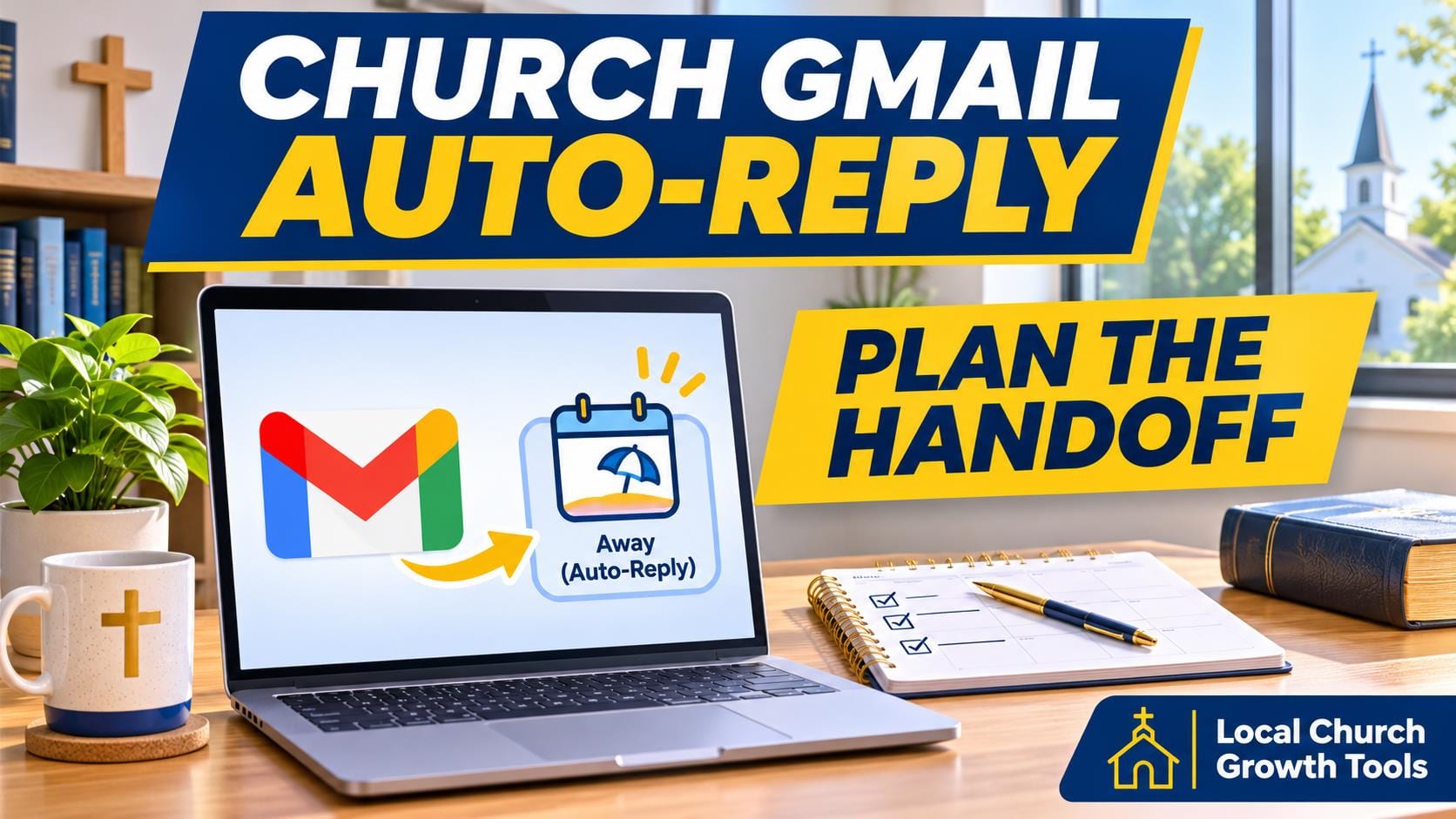
A church office can close for a holiday while questions about a service, a meal or an upcoming visit keep arriving. A scheduled Gmail vacation reply tells people when to expect an answer. Before you turn it on, decide who will check the inbox, what that person can handle and what should wait until regular hours resume.
Start with an actual closure and return date. If a team member is checking messages once a day, describe that arrangement accurately. Include a public contact route only when someone is assigned to monitor it. A promise of an urgent response creates confusion if nobody is covering the channel. Set the reply in the inbox people actually useOn a computer, open the mailbox and follow Google’s Gmail vacation responder steps. In Settings, choose See all settings, scroll to Vacation responder under General, turn it on, and enter the dates, subject and message. Save changes before leaving the page. If the church has a separate public mailbox, confirm you are editing that account rather than a staff member’s private address. |
 Illustrative computer workspace. Photo by Christin Hume on Unsplash. |
Write the reply around the next useful stepA short message can give the date the office reopens, say when replies will resume and point to a verified service schedule or a staffed public number if one exists. Read the message from the recipient’s point of view. If a link is the next step, open it from an outside account to make sure a visitor can read the page. Keep personal staff details and sensitive information out of the automatic message.
Google says the responder starts at midnight on the start date and ends at 11:59 p.m. on the end date unless you stop it earlier. Senders typically get one reply. Another can be sent if they write again after four days while the reply is still active, or after you edit the reply. Google also notes that messages in spam and those addressed to a subscribed mailing list are excluded.
Decide whether a contacts-only reply suits the mailbox. If the address is intended for first-time visitors, test it from an address that is outside your contacts. Verify that the automatic reply arrives and that its signature and links look right. If you share response wording for normal office hours, use our church Gmail reply templates guide for the separate task of writing a personal follow-up. |
 Illustrative workspace for a team handoff. Photo by Anete Lūsiņa on Unsplash. |
Assign coverage and test the returnIdentify one person to check the inbox during the closure and another to take over if the first is away. Discuss who handles routine questions, who should receive a referral and which messages should remain private. Google’s out-of-office handoff guide outlines ways to delegate work while away. Our church Gmail delegation guide covers assigning mailbox access without circulating a shared password.
Give the returning inbox owner a short handoff. List the unresolved messages, the next step for each and the name of the person responsible. A short test before the closure should cover both routes: the sender sees a useful reply, and the person on duty can open the inbox and carry out the agreed response.
When regular hours resume, confirm the banner is gone or end the responder early if your schedule changes. Check the public hours page and follow up on messages that still need a reply. |
0 Comments
Join the conversation
Be the first to comment
Share your thoughts above.