Google Forms Pre-Filled Link: Test It Before Sharing a Church Signup |
Set a public event detail in advance and check what each recipient sees. |
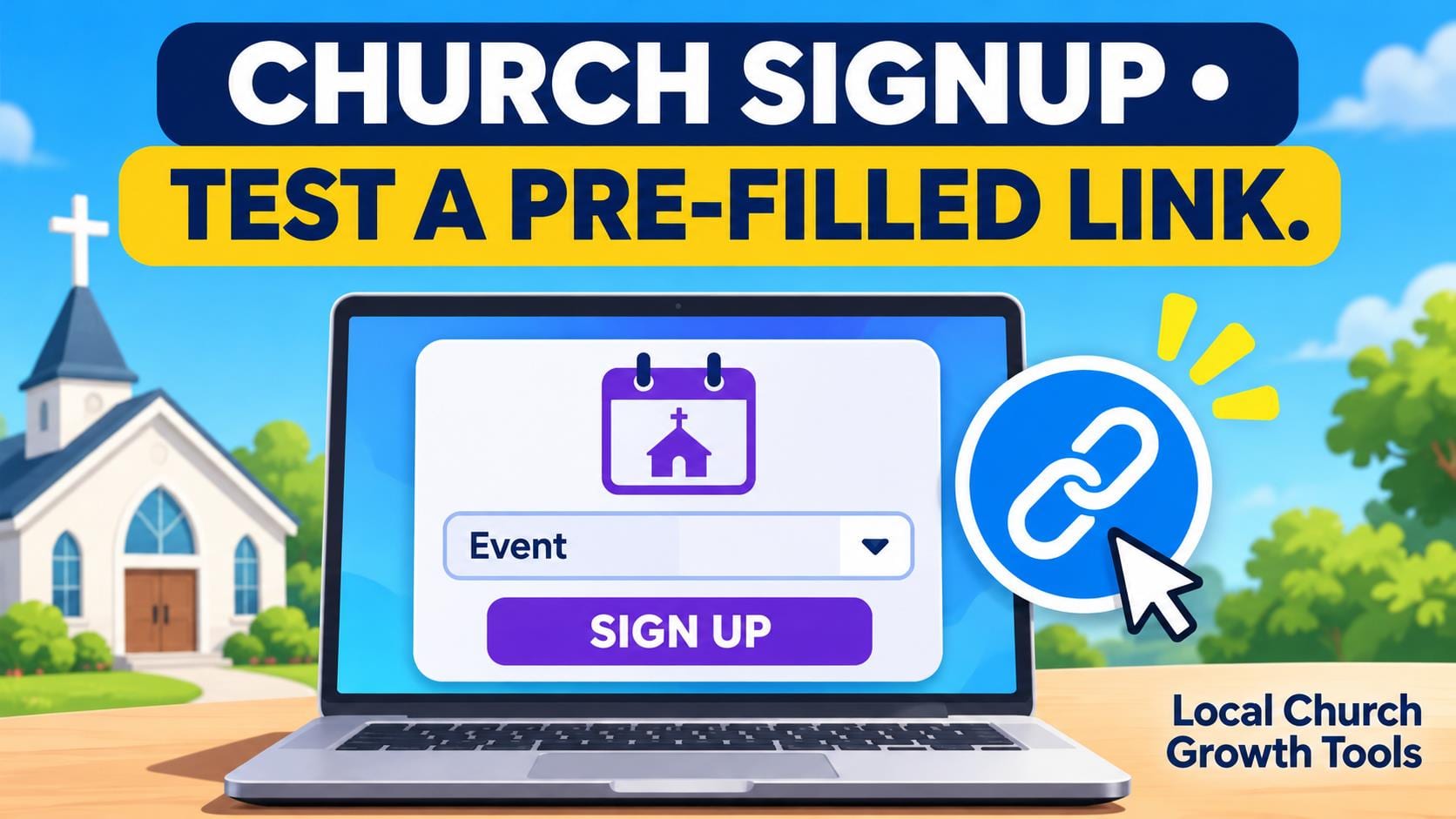
When one church signup covers several sessions, a pre-filled Google Forms link can save a volunteer from selecting a detail the team already knows. A bulletin can point readers toward a particular orientation or shift while the form still lets them check their choice. Test what the link actually fills before distributing it.
Start with one public detail, such as a session name or room. Avoid putting names, contact information or other private answers into a link you intend to share. A recipient can forward the address. Use the form’s questions and instructions to collect only what the team needs for registration. |
 Illustrative computer workspace. Photo by Christin Hume on Unsplash. |
Create and label the link
Google’s form sharing instructions describe the Pre-fill form option under More. Fill the answers you want to appear, choose Get link, and copy the generated link. The Workspace guide gives event titles, room numbers and presenters as examples. Choose a value that will still be correct when a reader opens an older announcement.
Use a practice copy or a test response that contains fictional details. Label the link in your notes with the session and date so an editor can tell it apart from a general signup link. Keep the original respondent link available for people who need to choose another session.
A pre-filled value is a starting answer. If the team needs to enforce eligibility, capacity or attendance, confirm how it will do that separately. Tell volunteers what they can change and what they should contact the coordinator about. Write that guidance near the question so the link is not the only source of context. |
 Illustrative workspace for a team handoff. Photo by Anete Lūsiņa on Unsplash. |
Check the recipient and coordinator views
Open the link as someone with the same permissions as a volunteer. Check the field value, wording and any follow-up questions. Try changing the answer if people should be able to choose a different session. Submit fictional details and ask the coordinator to confirm which session appears in the response record.
If the form uses branching, follow our section-routing guide and repeat the test for each affected path. Our response-editing guide covers a later change to a submitted answer. A good initial link can still lead to confusing results if the section or editing process has changed.
Share the tested link with the person responsible for the newsletter or bulletin. Ask them to open it from the actual placement before sending it widely. If an event moves, replace the link in current materials and decide what older copies should direct readers to do.
Save one short note with the link’s owner, its purpose and the expected answer. If another volunteer inherits the form, that note will help them decide whether to reuse the link or create a new one after the next schedule change.
Keep a record of the default answer beside the announcement so that someone checking the form knows which value to expect. If you are distributing links for multiple sessions, open each one after adding it to the bulletin. A correct link for one session does not establish that the other link was copied correctly. Ask a colleague to read the event date and the filled answer together before either link goes out. |
0 Comments
Join the conversation
Be the first to comment
Share your thoughts above.