Church Event Page Updates: Canceled, Postponed or Rescheduled? |
Keep the visible notice, registration link and search information consistent. |
church event page updateA church event page update needs one clear source of truth for visitors. When a church postpones a community breakfast or cancels a public workshop, an old event page can keep sending people toward the wrong plan. Begin with the page visitors actually use. Put the updated status near the top, explain what is known about the next date and provide a useful contact or next step. Do not leave the correction only in a social-media comment. If your website supports event structured data, review Google’s event documentation for church event page update with the person responsible for the site. Structured data is information attached to a page to help search systems understand it. A calendar plugin may manage it for you, but the volunteer changing visible text should find out whether the underlying event details also change. Use one real event as the starting point. Record its existing page address, original date, location and registration destination, then identify who approves the new information. A simple change record helps prevent one volunteer updating the website while another keeps promoting an outdated form. |
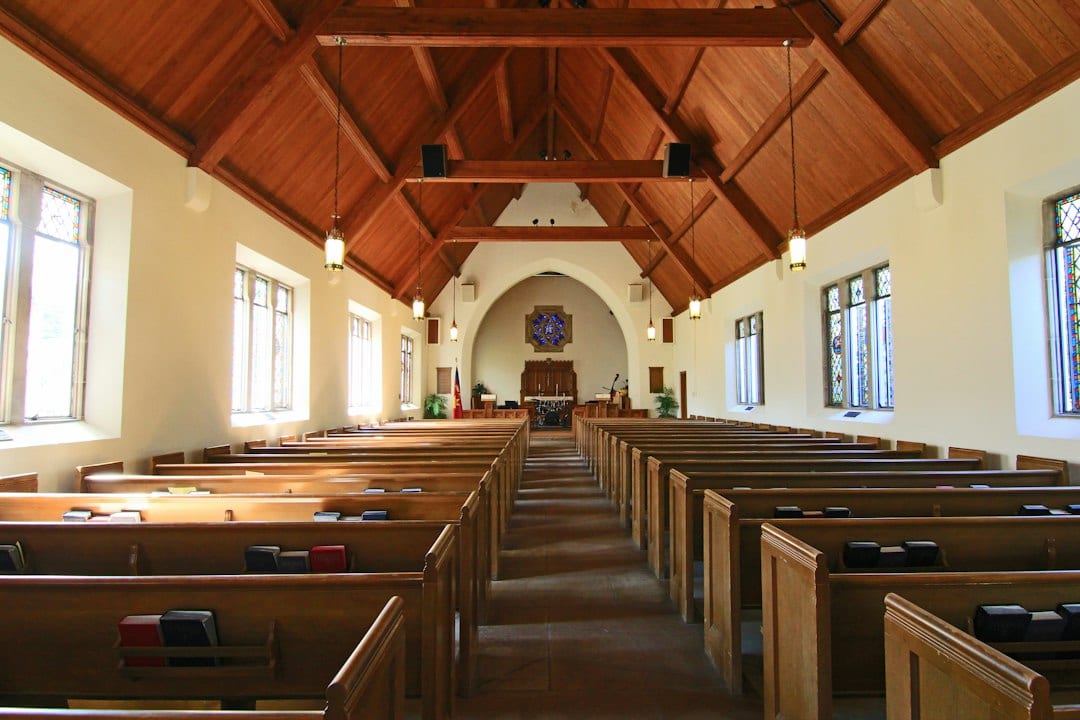
 Illustrative church or website-work stock photograph; not an event announcement or Google interface screenshot. Photo by Christin Hume on Unsplash |
postponed church eventA postponed church event needs different wording from a cancellation or a confirmed new date. A cancellation means the event will not take place as planned. An indefinite postponement means a new date is not yet known. A rescheduled event has a new date. These differences matter to visitors deciding whether to cancel travel, wait for another announcement or register again. Use plain wording on the page before worrying about technical fields. Google’s guidance provides corresponding event-status values. For a cancellation or postponement without a new date, it instructs site maintainers to retain identifying information such as the original start date and location while updating the status. When a new date is known, its rescheduling guidance covers the revised dates and optional previous-date information. Give these instructions to the website maintainer rather than guessing which fields to delete. The general structured-data policies require the information to represent what readers can see and to remain current. A hidden status field should not say “canceled” while the visible page still invites people to attend on Saturday. Review the headline, body, registration button and calendar details as one visitor experience. |
 Illustrative church or website-work stock photograph; not an event announcement or Google interface screenshot. Photo by Anete Lūsiņa on Unsplash |
rescheduled church event websiteA rescheduled church event website review should check the saved page and the next visitor action. After an authorized change, open the saved visitor-facing page. Read the status and date aloud, then exercise the registration or contact link. Check that it reaches the right destination and does not reopen an old signup form. If registrations are being handled elsewhere, coordinate the wording there with the organizer rather than assuming a website edit updates another service. Ask the maintainer to validate any structured-data changes using the tools recommended in Google’s documentation. Passing a test does not guarantee a special search appearance, and a changed page may not be reflected in search immediately. The immediate goal is accurate information for the person who reaches the church’s own page. Update the places the church actively controls: the next newsletter, relevant event announcements and any current promotional links. Keep a visible explanation for people following the original event address. Avoid erasing useful context before deciding what those visitors should now read and do. Our Google Business Profile hours guide helps with a separate public-information task when service or office details change. Use our shared ministry inbox workflow to assign incoming questions about the event. Begin with one responsible editor and an approved change note, then confirm the stored page, visible message and final destination all agree. |
0 Comments
Join the conversation
Be the first to comment
Share your thoughts above.