
Church YouTube Live Chat: Rehearse Moderation Before Sunday |
Give livestream volunteers an approved link sheet and a clear pastoral handoff |
A Sunday livestream can have good sound and an unattended conversation beside it. A short church YouTube live-chat rehearsal gives volunteers a chance to practice welcome, moderation and handoff before visitors arrive. Keep the exercise small enough that the team can repeat it when a new person joins.
This is a ministry role as well as a technical task. RiverCross Church’s volunteer descriptions, for example, distinguish YouTube chat monitors from sound and livestream operators. Their monitors encourage participation and share appropriate links. Your church can make the same distinction without copying another congregation’s staffing timetable.
Name the person watching chat, the backup and the leader who can resolve an uncertain situation. Write down when each person begins and who receives the handoff. A volunteer should not have to guess whether running the camera also means watching every message. Confirm the role before the rehearsal |
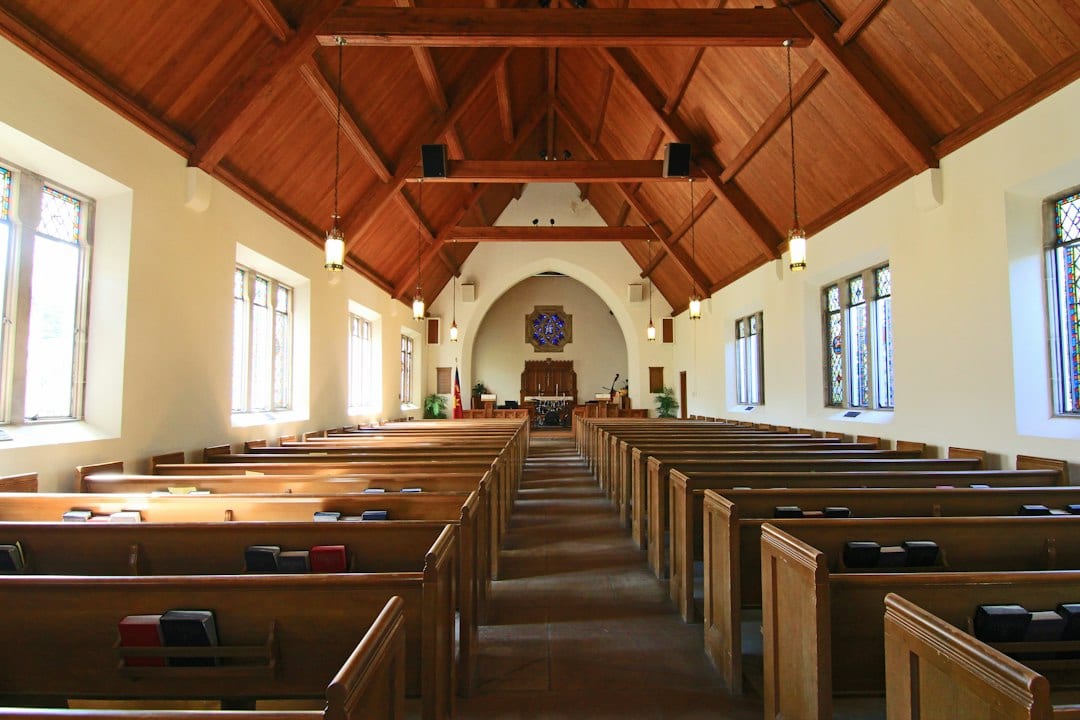 Illustrative stock photo of a church sanctuary; not a congregation profiled in this guide. Photo by Debby Hudson on Unsplash. |
Review YouTube’s moderator-role documentation together. Creators can choose standard or managing moderators; managing moderators have more options. Ask the channel owner to confirm the actual role and test the intended device. A title on the church rota does not create YouTube permissions.
Our church YouTube permissions guide covers the separate question of channel access for sermon work. Use it when upload or editing duties are involved, while checking chat-moderator responsibilities in the moderation documentation. Keep each volunteer’s assigned task clear.
Read YouTube’s live-chat moderation guide before choosing automatic settings. It currently describes None, Basic and Strict options, with Basic holding potentially inappropriate messages and Strict holding a broader range. Held messages need a human decision; leaving them alone keeps them hidden.
The desktop Content controls instructions place these settings under Settings, Community moderation and Content controls. Have the authorized leader decide the intended setup before the service rather than expecting an unfamiliar volunteer to improvise it. Practice three ordinary situations |
 Illustrative stock photo of laptop work; not a YouTube moderation screen or an actual church rehearsal. Photo by Christin Hume on Unsplash. |
Use fictional sample messages in a tabletop exercise or an owner-approved test. Do not use real prayer requests or volunteer personal information as practice material. First, rehearse a newcomer asking where to find the next service time; the response should use an already checked church link.
Second, rehearse a repetitive or inappropriate message. YouTube documents message removal, temporary timeouts and hiding a user as different actions. Let the volunteer explain which action fits your agreed guidelines before touching a real viewer’s message. Practice the decision and escalation route, not just finding a menu.
Third, rehearse a request that deserves private pastoral follow-up. Prepare a brief public response directing the person to the church’s approved contact route. Agree who receives that follow-up; a warm chat reply is not a completed handoff.
Keep one approved link sheet for service details, visitor contact and the next step you actually offer. Open every destination from the rehearsal device. Copying last week’s link without checking it can send a visitor to a closed registration or outdated page.
Chat support is separate from access to the spoken service. Our sermon-caption volunteer checklist covers another part of the viewing experience. Assign that review separately so a busy conversation does not hide a caption problem.
Finish by recording the duty window, backup, approved links and one unresolved question. Rehearse again after an important settings change or volunteer handoff. A prepared human response is the goal: the technology supports a welcome, while a clear team agreement tells people what to do when the conversation becomes difficult. |
0 Comments
Join the conversation
Be the first to comment
Share your thoughts above.