
Church Google Slides Accessibility: Review the Reading Order |
Google Slides accessibility for churches: check reading order, meaningful image descriptions and the actual shared view before a volunteer handoff. |
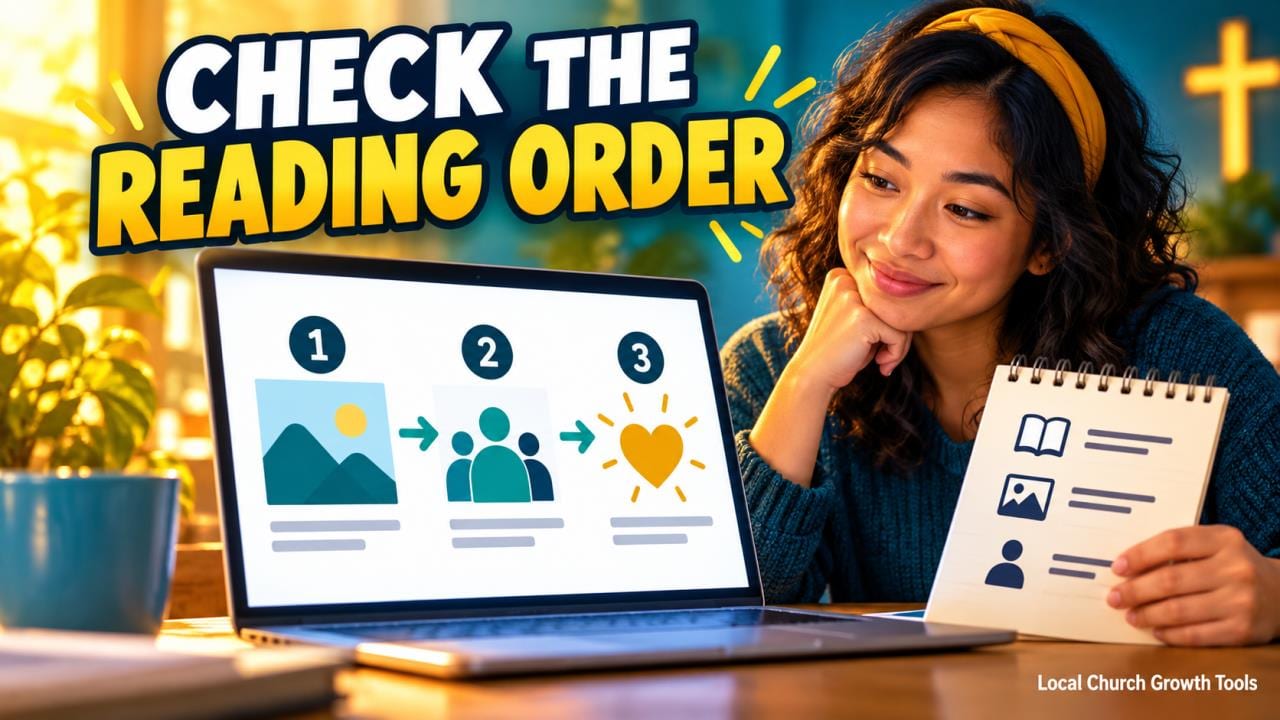
Google Slides accessibility deserves a separate review before a church shares an orientation deck or visitor-information presentation. A slide can look tidy on the volunteer’s laptop while its reading sequence, image descriptions or shared view still make the message difficult to follow.
Start with a small real deck: perhaps an invitation, arrival directions, the main activity and a contact slide. Decide what the recipient must understand without relying on the presenter to fill every gap. Keep a review copy so the team can make changes without confusing it with the approved version.
Google’s accessible-content guidance recommends meaningful image descriptions, informative link text, readable contrast and text that does not depend on formatting alone. Apply those ideas to the actual message rather than treating a decorative theme as evidence of accessibility.
For example, a differently colored room name still needs a clear label. A photograph that explains an entrance needs a useful description. The purpose is to preserve the information for the reader, not to create a long inventory of every visual detail. Check the order the slide communicates |
 Illustrative stock photo of a church gathering; not the reader’s congregation or a reported accessibility review. Photo by adrianna geo on Unsplash |
Google’s Slides screen-reader guidance explains that tab order follows the order of elements and that their position in the stack affects reading order. A heading placed visually above a text box is not enough to establish what someone encounters first.
Use the documented canvas navigation to move through the slide elements, then compare the sequence with the intended message. If it jumps from a contact address to a decorative image before reaching the main instruction, identify the element that needs attention.
The guidance describes Arrange → Order controls for moving elements in the stack. Make a small change, then review the sequence again. Check the visual layout too, because changing the stacking order can affect objects that overlap.
Keep the test specific. Ask whether the invitation, date, arrival instruction and contact appear in a logical sequence. A volunteer should be able to describe the problem and the correction clearly enough for the next reviewer to repeat the check. Review images and the shared experience |
 Illustrative stock photo of a laptop presentation; not Google Slides’ interface or a demonstration that accessibility checks passed. Photo by MART PRODUCTION on Pexels |
For an informative image, describe the detail needed in context. An entrance photograph might explain which door the invitation refers to. Do not assume an automatic description is correct, and do not substitute a photographer credit for the information the image is meant to convey.
Our church photo-handoff guide distinguishes descriptions, captions and credits. Those roles remain useful when preparing slides: permission and attribution address the image’s use, while an informative description helps communicate its purpose.
Open the view recipients will actually receive and test its links. Google describes an HTML view as a different way to navigate a presentation; if you offer it, review that view rather than assuming it behaves exactly like the slide canvas. Keep essential instructions available as readable text.
Our Slides notes-and-handoff guide covers presenter preparation. Speaker notes can support the person leading a session, but the recipient-facing information still needs its own review. Do not assume a spoken explanation reaches everyone who later receives the deck.
Ask a reviewer to follow one practical task, such as finding the arrival door and contact person. Listen to where the information becomes unclear, revise the relevant slide and check the saved version again.
Record what was tested and what still needs attention. A reading-order check is one useful part of a broader accessibility review, not proof that a presentation meets every person’s needs or a certification of compliance. |
0 Comments
Join the conversation
Be the first to comment
Share your thoughts above.