Church Zoom Orientation: Test a Specific Shared Window |
Prepare a church Zoom orientation with a specific application window. Confirm host sharing controls, participant readability and Stop share. |
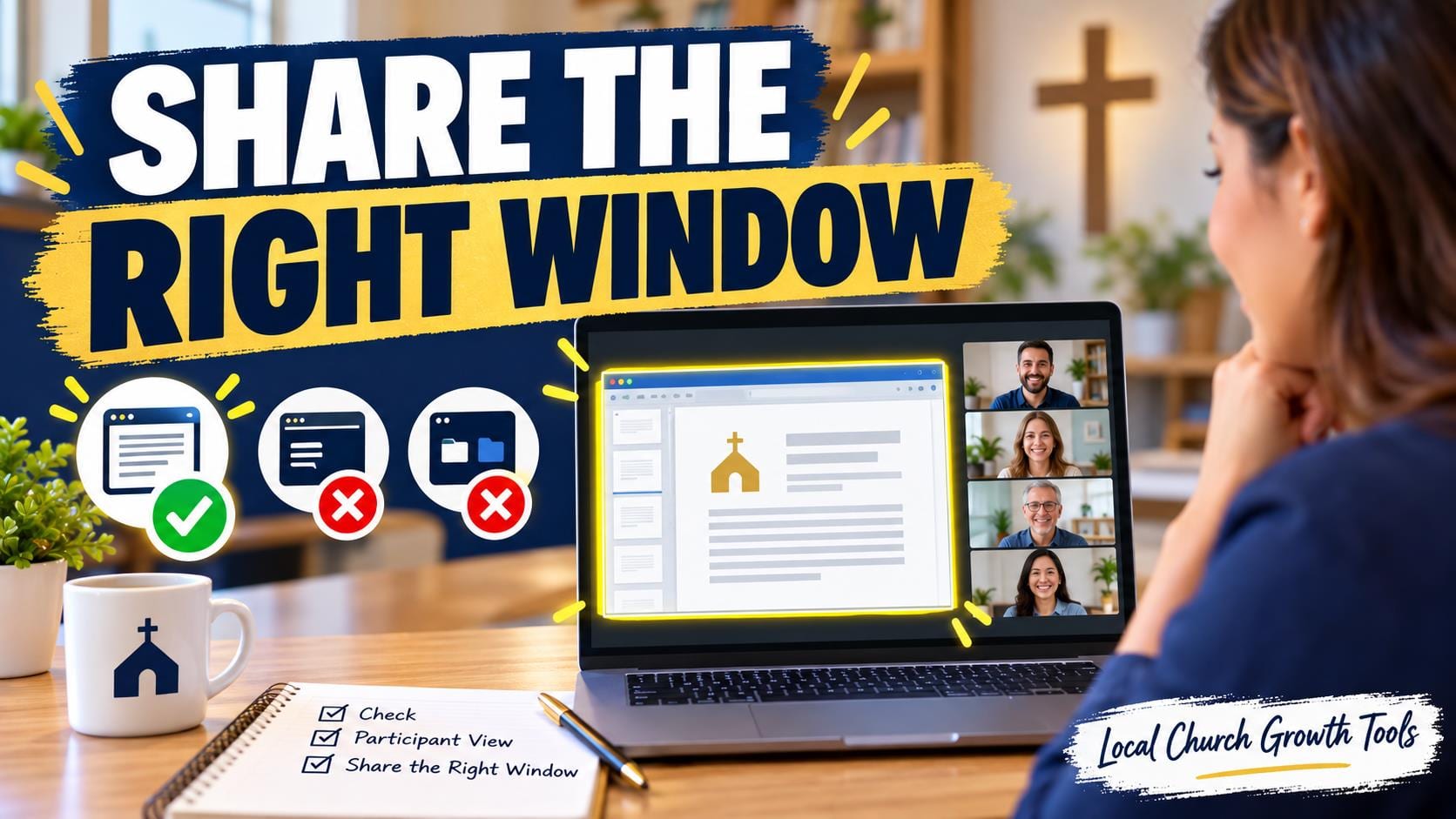
Sharing one application window in a church Zoom orientation can help a presenter keep attention on the agreed material. Before the meeting, prepare the window, confirm the host’s sharing arrangement and test what another participant actually sees. A selected window still needs a careful content review.
Prepare the material before the callUse a sample orientation document for the first rehearsal. Open only the material you intend to demonstrate in that window. Remove unrelated tabs and private notes from the working view. Give the file a clear title so the presenter can recognize it in the sharing selector.
Zoom’s screen-sharing guide describes choosing Screens and selecting an entire screen or a specific application window in the Windows or macOS desktop workflow. Choose the intended application rather than a whole desktop when that is the presentation you need.
Interface options depend on the device and client. This guide focuses on that desktop window selection; do not assume a phone, browser or other operating system presents identical choices. Check the current Zoom guide against the version the volunteer will actually use. |
 Illustrative stock photo of laptop work; not a Zoom meeting or actual church orientation. Photo by Christin Hume on Unsplash. |
Agree who can shareThe meeting host controls whether participants may share. Zoom’s participant-sharing control guide describes host and co-host options for who can share and who can interrupt another share. Agree the presenter’s turn before the orientation starts.
A volunteer who cannot begin sharing should ask the host to check the meeting controls. Avoid trying unrelated account changes during a live session. A short rehearsal with the actual host can reveal the issue while there is time to resolve it calmly.
Zoom notes that changes to sharing controls within a meeting affect the current session; default settings govern later meetings. The coordinator should confirm the arrangement for the real orientation instead of relying on a setting used in an earlier rehearsal.
Our Zoom orientation registration guide covers a separate pre-meeting check. Reaching the meeting and sharing the right window are two different stages. Test both if the volunteer will move from an invitation into a demonstration. |
 Illustrative stock photo of church seating; not the congregation holding a particular orientation. Photo by Debby Hudson on Unsplash. |
Check the participant view and stop clearlyAsk a consenting test participant to read the main heading and identify the material on their screen. Confirm that text is legible at their normal viewing size. A presenter’s large monitor can hide a problem that becomes obvious on a smaller participant screen.
Window sharing is not a guarantee that private material is absent. Anything visible inside the shared application needs review. If the demonstration changes to another file or browser tab in that window, check it before displaying it to the team.
Practice stopping the share at the end of the demonstration. Zoom documents Stop share in the sharing toolbar. The presenter should know where that control is before moving on to unrelated work, rather than assuming closing one document ends every sharing action.
Give participants a current link to the approved orientation material and a clear way to ask for help. Our participant-view captions guide concerns Google Meet, another platform, but reinforces the value of testing from the attendee’s perspective. Use the platform-specific instructions for each actual meeting.
Keep a simple rehearsal note: device used, application shared, host arrangement and participant readability result. If any element changes, repeat the relevant part of the test before the real session. This is particularly useful when a new volunteer takes over presenting.
Official Zoom guidance was checked October 11, 2026. Confirm the selected window, host permission and visible contents, then test legibility and Stop share before using the workflow for a live church orientation. |
6 Comments
Join the conversation
Honestly the part about checking which Zoom version the volunteer actually has is easy to overlook. We learned that the hard way.
You're absolutely right, version differences can catch even experienced presenters off guard, which is exactly why we recommend checking the current Zoom guide against the specific client your volunteer will be using before the meeting.
tom_wSame here. Our volunteer had an older version that didn't even show the window option the same way. Took us a good 20 minutes to figure out why her screen looked different from the instructions.
This saved our Sunday school coordinator so much stress. She kept sharing her whole desktop by accident and people could see her emails popping up.
Dana R.Oh that is such a common one. Happened to our treasurer too, whole taskbar visible with everything open. Window sharing really does make a difference once people get used to finding it.
That's a perfect example of why choosing a specific application window rather than the whole desktop makes such a difference, private notifications and emails stay completely out of view for participants.