
Church Gmail Reminders: Check Schedule Send Before the Shift |
Schedule a church volunteer Gmail reminder, check its timezone and cancel or reschedule it when event details change. |

Gmail Schedule send for church volunteer reminders lets a coordinator prepare a message now and choose a later sending time. The useful part is the review routine around it: confirm the shift, select the intended recipients and keep a way to cancel a reminder when plans change.
Prepare one clear reminderStart with a modest task, such as reminding an agreed team about Saturday setup. Put the date, arrival time, meeting point and coordinator’s reply address near the top. Include a link to the current schedule instead of copying a large roster into the email.
Our Gmail reply-template guide covers checking reused wording. A saved greeting can help, but old dates, room names and contact details still need a fresh review. Read the message as the person arriving for the first time would read it.
On a computer, Google’s Schedule send instructions describe composing the email, opening the down arrow beside Send and choosing Schedule send. Select the intended date and time rather than accepting a convenient suggestion without reading it. |
 Illustrative stock photo of laptop work; not a Gmail interface or real church reminder. Photo by Christin Hume on Unsplash. |
Check the time and the scheduled copyGoogle says scheduled messages use the timezone in which they were scheduled and may go a few minutes later than the selected time. Treat the feature as a planned reminder, rather than a guarantee of delivery at an exact second.
If a coordinator is traveling, compare the chosen time with the congregation’s local time before scheduling. A Friday evening reminder should not depend on everyone interpreting an ambiguous “tomorrow.” Write the actual day and date in the message as well.
After scheduling, open Gmail’s Scheduled folder and check the message you just prepared. Review the recipients, subject and arrangement again. Keep a small coordinator note recording which event has a pending reminder so another person does not create a second version.
For a first trial, use a harmless message to a consenting colleague. Confirm that the wording is understandable and that the scheduled item is where you expect. This tests your workflow without using a real serving roster or creating a surprise for the whole team. |
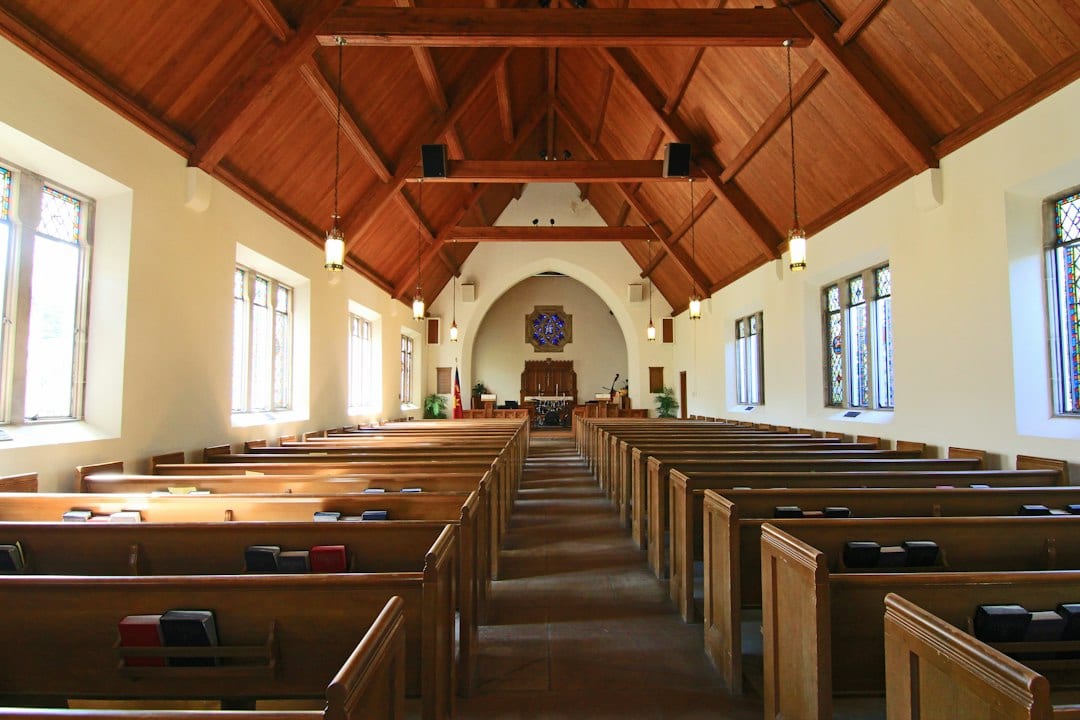 Illustrative stock photo of church seating; not a named congregation or scheduled event. Photo by Debby Hudson on Unsplash. |
Cancel, correct and reschedule deliberatelyTo change a scheduled message, Google directs users to select it in Scheduled and choose Cancel send. The canceled item becomes a draft. Edit the details, then schedule it again with the correct date and time. Check that your final version is scheduled after editing.
A changed church event needs a broader correction plan too. Our canceled or rescheduled event-page guide helps keep the public information aligned. Update the authoritative event page and review any pending reminder before people travel using older instructions.
Do not confuse canceling a future scheduled message with Undo Send after sending. Google’s send and unsend guide describes a short cancellation period, with settings of five, ten, twenty or thirty seconds. That brief window is not a long-term recall plan.
This article covers preparing individual Gmail reminders. It does not establish a recurring campaign or replace a reviewed newsletter process. Agree who owns the pending message and who handles a late change; a tool setting alone cannot resolve that responsibility.
Official Gmail guidance was checked October 11, 2026. Before the real reminder goes out, confirm its recipients, local date, current event link and scheduled status. If details change, cancel the pending version, make the correction and verify the new schedule. |
0 Comments
Join the conversation
Be the first to comment
Share your thoughts above.